

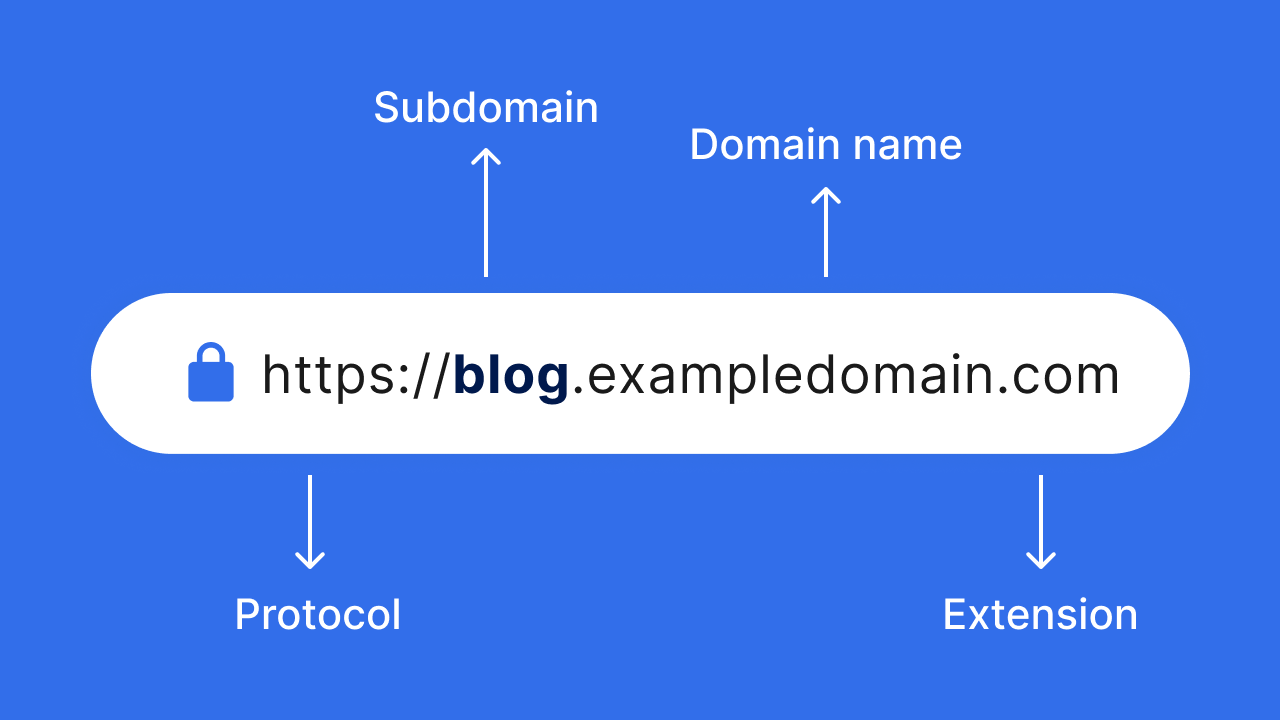
Creating a staging site on a subdomain is one of the safest ways to test WordPress updates, plugins, themes, and design changes before deploying them to your live website. A staging environment gives developers and site owners a sandbox where changes can be tested without affecting visitors or risking downtime.
However, one of the most important considerations when setting up a staging site is ensuring that search engines cannot access and index it. Failure to do so can create duplicate content issues and potentially impact your live site’s SEO performance.
Why Use a Staging Site on a Subdomain?
A staging site is essentially a clone of your live website hosted in a separate environment, typically on a subdomain such as:
- staging.yourdomain.com
- dev.yourdomain.com
- test.yourdomain.com
Using a subdomain allows you to:
- Test WordPress core updates safely
- Evaluate new plugins and themes
- Make design changes without affecting users
- Debug issues before deploying fixes to production
- Train content editors without impacting the live site
The Best Way to Hide Your Staging Site from Google
Many website owners rely on the “Discourage search engines from indexing this site” setting within WordPress. While this adds a robots meta tag and updates robots.txt instructions, it should not be considered a secure method of preventing indexing.
The most effective and recommended way to hide your staging subdomain from Google is to add password protection at the server level.
Password protection requires both users and bots to log in before viewing any content. Since Googlebot cannot authenticate through the login prompt, it cannot crawl or index the staging environment.
This approach provides several important benefits:
- Prevents Googlebot from crawling the staging site
- Stops pages from appearing in search results
- Protects sensitive development work from public access
- Prevents Google from flagging your staging site as duplicate content
Duplicate content can become a significant SEO issue because search engines may struggle to determine which version of a page should rank. In some cases, this can negatively affect the search visibility of your live website.
The Hidden Problem with Password-Protected Staging Sites
Although password protection is highly effective, it can introduce an unexpected issue within WordPress.
WordPress relies on a background script called wp-cron.php to handle scheduled tasks, including:
- Scheduled post publishing
- Plugin maintenance tasks
- Automated email notifications
- Scheduled backups
- Cache cleanup routines
When a staging subdomain is protected using server-level authentication (such as Apache .htaccess authentication or Nginx HTTP authentication), WordPress may be unable to communicate with its own wp-cron.php file.
As a result, scheduled tasks can fail to execute correctly.
One of the most common symptoms is the dreaded:
“Missed Schedule” error
This occurs because WordPress attempts to trigger wp-cron.php via an HTTP request, but the authentication layer blocks access to the script.
Solution 1: Whitelist wp-cron.php
The preferred server-side solution is to allow unauthenticated access specifically to wp-cron.php while keeping the rest of the staging site protected.
Apache (.htaccess)
Add the following rule:
<files wp-cron.php>
Order Allow,Deny
Allow from all
Satisfy any
</files>
This allows WordPress cron requests to access wp-cron.php while maintaining password protection across the rest of the site.
Nginx
For Nginx servers, use a location block similar to:
location = /wp-cron.php {
    allow all;
    satisfy any;
    # (Include your fastcgi_pass or proxy_pass directives here if needed)
}
This ensures cron requests can reach the script without authentication.
Solution 2: Use a WordPress Plugin
If you would prefer not to modify your server configuration, another option is to use the WordPress plugin WP Cron HTTP Auth.
This plugin is specifically designed to enable WP-Cron functionality on websites protected by HTTP Authentication. It allows WordPress to pass the required authentication credentials when communicating with wp-cron.php.
Benefits include:
- No server configuration changes required
- Maintains password protection
- Resolves scheduled task failures
- Simple setup for non-technical users
This approach can be especially useful on managed hosting environments where direct access to Apache or Nginx configuration files is restricted.
Additional Staging Site Best Practices
Alongside password protection, consider implementing the following safeguards:
Use a Separate Database
Avoid testing changes directly against your production database whenever possible. A dedicated staging database reduces the risk of accidental data corruption.
Disable Outbound Emails
Staging sites can unintentionally send customer emails, password reset notifications, or WooCommerce order updates. Use an email suppression plugin or SMTP testing service to prevent accidental deliveries.
Block Analytics Tracking
Ensure Google Analytics, Google Tag Manager, and other tracking scripts are disabled or configured to exclude staging traffic. This prevents test activity from contaminating reporting data.
Keep Plugins and Themes Updated
A staging environment should closely mirror production. Keeping versions aligned ensures testing accurately reflects real-world behaviour.
Remove the Staging Site When No Longer Needed
Unused staging sites can become security liabilities. Once development work is complete and deployed, remove or archive outdated staging environments.
Final Thoughts
A staging subdomain is an essential tool for safe WordPress development, allowing changes to be tested before reaching your live audience. However, protecting that environment from search engines should be a top priority.
Server-level password protection remains the most reliable method for preventing Google from crawling and indexing a staging site. It also helps avoid duplicate content issues that could impact your live site’s SEO performance.
Just be aware that password protection can interfere with WordPress’s built-in cron system. If you encounter “Missed Schedule” errors, either whitelist wp-cron.php at the server level or use a plugin such as WP Cron HTTP Auth to restore scheduled task functionality while keeping your staging environment secure.